
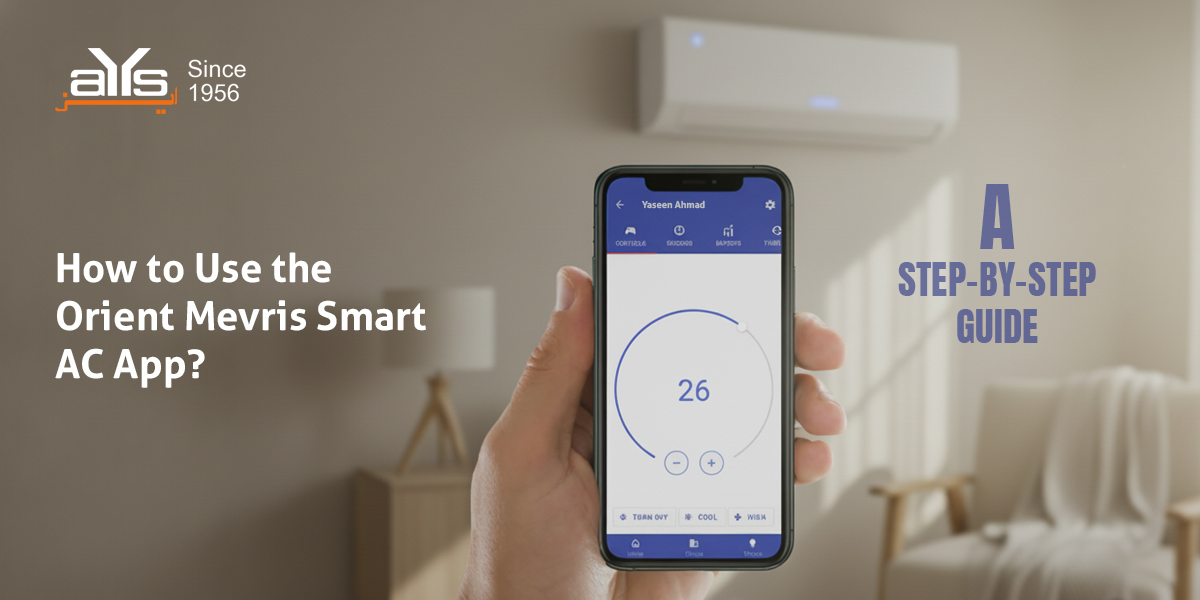
Orient’s Ultron Series (like the E-Comfort, Super, and Bold models) are “Smart ACs.” This means they don’t just come with a remote; they come with the Mevris platform. This powerful app lets you control your AC from anywhere in the world and, most importantly, see exactly how much electricity (units and money) your AC is consuming in real-time.
Here is a simple guide to connecting your Orient AC to the Mevris App.
Step 1: Download and Register
- Download the Mevris app from the Google Play Store or Apple App Store.
- Open the app and click “Sign Up.”
- Enter your Name, Email, and Mobile Number to create an account.
Step 2: Activate WiFi Mode on AC
Before the app can find your AC, you must put the AC into “Pairing Mode.”
- Turn on your Orient AC.
- Press the “Direct/Smart” button (or “Display” button 6 times rapidly) on your remote until you see the WiFi symbol blink on the AC’s display or hear a beep.
- Your AC is now broadcasting a signal.
Step 3: Connect via Device Explorer
- Open the Mevris App and tap on “Device Explorer” or the “+” (Add Device) button.
- Tap “Add Site” (e.g., Home, Office) if prompted.
- The app will ask you to connect your phone to the AC’s temporary WiFi hotspot. Go to your phone’s WiFi settings and connect to the network named “Orient_AC_xxxx” (the password is usually
12345678or found on the AC manual). - Return to the Mevris App. It will now ask for your Home WiFi details.
- Select your home WiFi network and enter the password.
- Wait for 60 seconds while the AC connects to your internet. Once done, the WiFi light on the AC will stop blinking and stay solid.
What Can You Do with Mevris?
| Feature | Benefit |
|---|---|
| Bill Manager | Input your unit price (e.g., Rs. 40) and see your daily/monthly bill cost in Rupees. |
| Schedule | Set the AC to turn off automatically at 4 AM to save energy. |
| Timeline | See a history of when the AC was turned on and off. |
| Voltage Check | Monitor the incoming voltage to ensure it’s safe for operation. |
Video Tutorial
Watch the official visual guide to connecting Mevris here:


